The Yard and the Desk
How to see what needs your decision today, in a minute.
- Owner access.
- 1
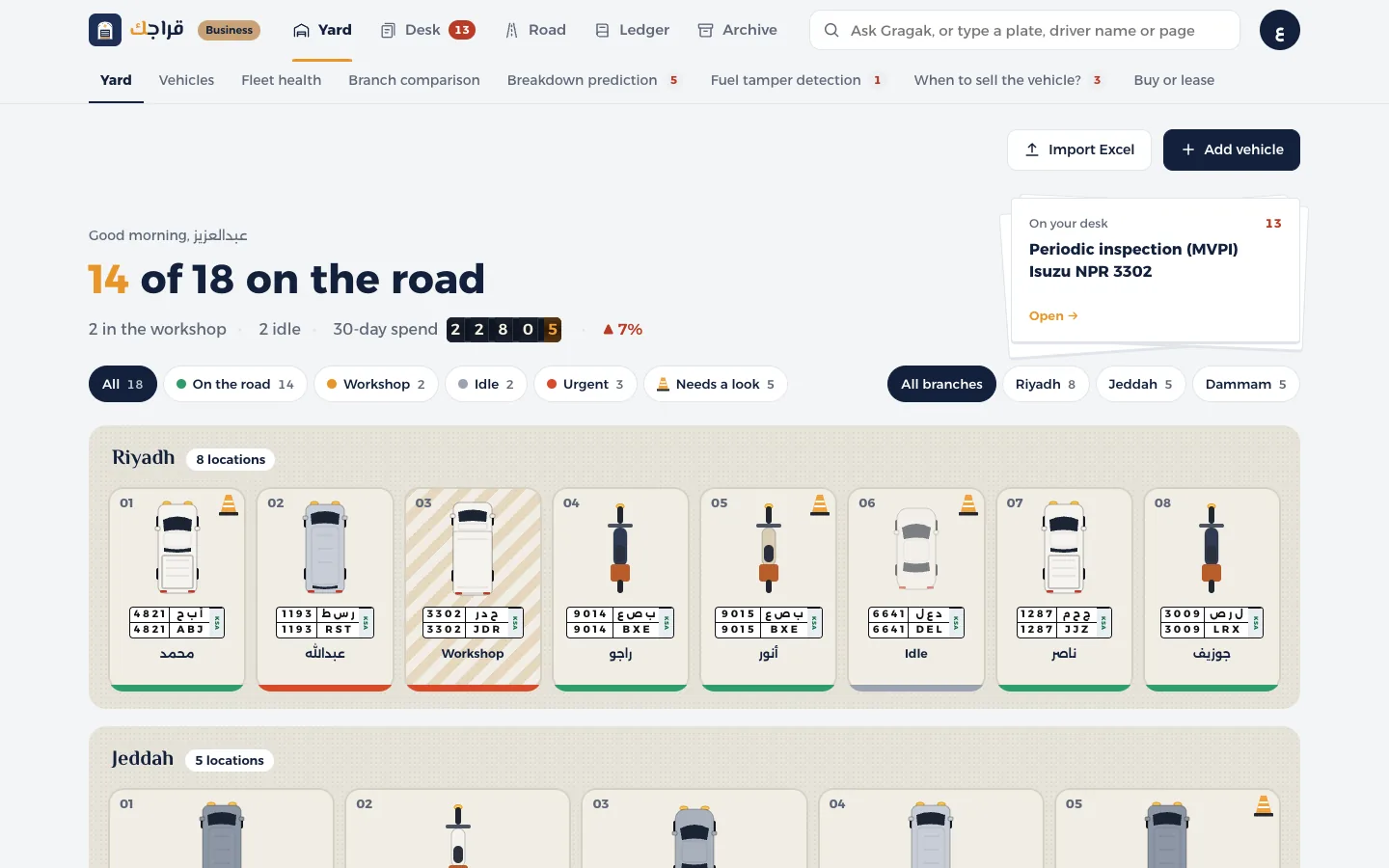
Open the Yard, the first page at the top. The first line sums up your fleet today: how many vehicles are in service, how many are at the workshop, and spending over the last 30 days.
- 2
Each vehicle has its own bay. The strip under the bay shows its status: green is in service, orange is at the workshop, grey is parked, and red means something urgent. A cone means it needs a look. Tap any bay to see the vehicle card.
- 3
Open the Desk: everything waiting for your decision is a card, like an expired document or expenses to approve. Tap Renew now or Approve all, open its page, or Put off till tomorrow.
- 4
Fleet health is a tab under the Yard: a score out of 100 that combines documents, maintenance, safety, daily checks and the cost trend, for each branch and each vehicle.
- 5
The search box at the top: type a plate number, a driver's name or a page name, or ask: how much did we spend on fuel?
A score below 60 means the fleet needs attention. Start with the weakest vehicles on the Fleet health page.